
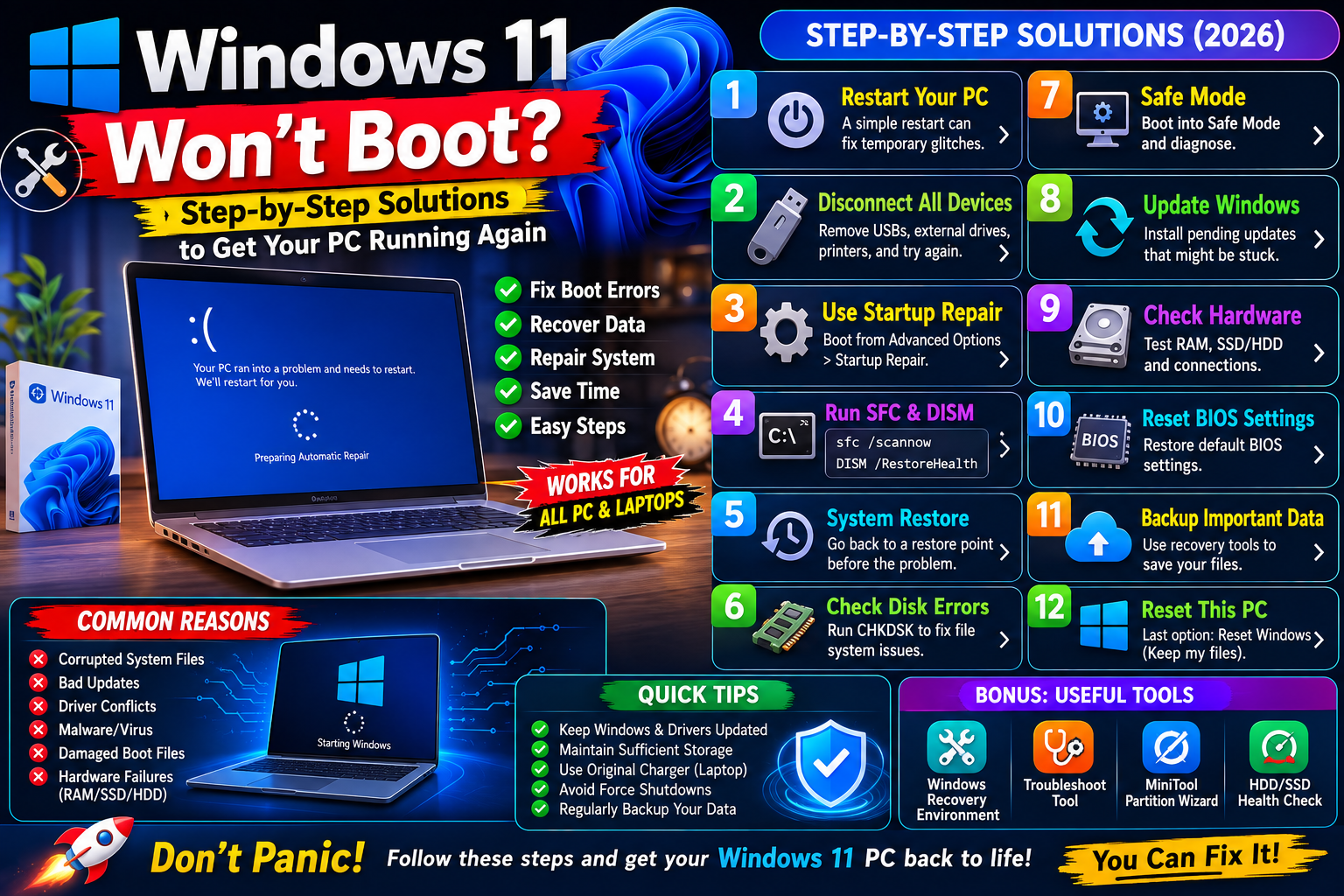
Windows 11 Won’t Boot? Step-by-Step Solutions to Get Your PC Running Again (2026 Guide)
A Windows 11 PC that refuses to boot can be frustrating, especially if you have important files or work to complete. Whether your computer is stuck on the Windows logo, shows a black screen, enters an automatic repair loop, or displays an error message, the problem is often fixable without replacing your hardware.
This comprehensive guide walks you through the most effective troubleshooting steps to diagnose and fix Windows 11 boot problems.
Common Signs of Boot Problems
Your PC may have a boot issue if you experience any of these symptoms:
- Stuck on the Windows logo
- Black screen after turning on the PC
- Infinite restarting loop
- “Preparing Automatic Repair” keeps appearing
- Blue Screen of Death (BSOD) during startup
- “No Boot Device Found” error
- Windows freezes before reaching the login screen
- PC powers on but shows no display
The exact symptom often provides clues about the underlying cause.
Why Windows 11 Won’t Boot
Several issues can prevent Windows from starting correctly, including:
- Corrupted system files
- Failed Windows updates
- Damaged boot configuration
- Faulty SSD or HDD
- Corrupted drivers
- Hardware failure
- Malware
- Incorrect BIOS/UEFI settings
- Loose internal hardware connections
- Power supply issues
Fortunately, many of these problems can be resolved with built-in Windows recovery tools.
1. Disconnect External Devices
External hardware can sometimes interfere with the boot process.
Disconnect all unnecessary devices, including:
- USB flash drives
- External hard drives
- Printers
- Webcams
- USB hubs
- Memory card readers
- Game controllers
Leave only:
- Keyboard
- Mouse
- Monitor
- Power cable
Restart your PC to check if Windows loads normally.
2. Perform a Hard Restart
Temporary hardware or firmware glitches can sometimes prevent booting.
For laptops:
- Turn off the laptop completely.
- Disconnect the charger.
- Hold the power button for 15–20 seconds.
- Reconnect the charger.
- Turn the laptop back on.
For desktop PCs:
- Shut down the computer.
- Turn off the power supply (if applicable).
- Wait about 30 seconds.
- Power it back on.
3. Enter Windows Recovery Environment (WinRE)
If Windows fails to boot several times, it may automatically open the Windows Recovery Environment.
If it doesn’t:
- Turn on the PC.
- As soon as the Windows logo appears, hold the power button to force it off.
- Repeat this process three times.
Windows should then boot into Advanced Startup Options.
4. Run Startup Repair
Startup Repair automatically scans for and fixes common boot problems.
From Advanced Startup:
- Select Troubleshoot
- Choose Advanced options
- Click Startup Repair
- Select your Windows installation
Allow Windows to complete the repair and restart.
5. Boot into Safe Mode
If Startup Repair doesn’t help, try Safe Mode.
Navigate to:
Troubleshoot → Advanced options → Startup Settings → Restart
Then press:
- 4 for Safe Mode
- 5 for Safe Mode with Networking
If Windows starts in Safe Mode, the problem is likely caused by a driver, startup application, or recently installed software.
6. Uninstall Recent Windows Updates
A faulty update can sometimes prevent Windows from booting.
In WinRE:
- Open Advanced options
- Select Uninstall Updates
- Choose either:
- Uninstall latest quality update
- Uninstall latest feature update
Restart your PC afterward.
7. Use System Restore
If you previously enabled System Restore:
- Open Advanced options
- Select System Restore
- Choose a restore point created before the issue began
- Follow the on-screen instructions
Your personal files will remain intact, but recent system changes will be reverted.
8. Repair Corrupted System Files
From Advanced options, open Command Prompt.
Run the following commands:
sfc /scannowIf Windows won’t scan because it’s offline, you may need to target the Windows installation manually.
You can also run:
DISM /Online /Cleanup-Image /RestoreHealthThese tools repair corrupted Windows files that may be preventing startup.
9. Repair the Boot Configuration
Corrupted boot records can stop Windows from loading.
Open Command Prompt and run:
bootrec /fixmbrbootrec /fixbootbootrec /scanosbootrec /rebuildbcdRestart your PC after completing the commands.
10. Check the Hard Drive
Storage errors may prevent Windows from booting.
Run:
chkdsk C: /f /rThis scans for:
- File system corruption
- Bad sectors
- Disk errors
The process may take some time, especially on large drives.
11. Check BIOS/UEFI Settings
Incorrect BIOS settings can prevent your system from finding the boot drive.
Verify:
- Your SSD or HDD is detected.
- The correct drive is first in the boot order.
- UEFI/Legacy settings match your Windows installation.
- Secure Boot settings haven’t changed unexpectedly.
If you’re unsure, restoring BIOS defaults is often a safe first troubleshooting step.
12. Test Your RAM
Faulty memory can cause startup failures and random crashes.
Use the built-in Windows Memory Diagnostic (if you can boot into recovery) or a dedicated memory testing tool from bootable media.
If your desktop has multiple RAM sticks:
- Power off the PC.
- Test one stick at a time.
- Try different memory slots.
13. Scan for Hardware Problems
If Windows still won’t boot, inspect your hardware.
Check:
- SSD/HDD health
- RAM seating
- Power cables
- SATA cables
- Graphics card (desktop)
- Cooling fans
Loose connections are more common than many users realize.
14. Reset Windows 11
If software corruption is severe:
- Enter Troubleshoot
- Select Reset this PC
- Choose Keep my files
Windows will reinstall while preserving your personal files, though installed applications will need to be reinstalled.
15. Reinstall Windows 11
If all else fails:
- Create Windows 11 installation media on another computer.
- Boot from the USB installer.
- Choose Repair your computer first if you haven’t already.
- If repair isn’t successful, perform a clean installation after backing up important files if possible.
A clean installation often resolves persistent software-related boot issues.
When the Problem Is Hardware
If Windows still won’t boot after trying these solutions, hardware failure may be the cause.
Possible faulty components include:
- SSD or HDD
- RAM
- Motherboard
- Power supply
- Graphics card
- CPU (less common)
If hardware diagnostics indicate a fault, replacing the affected component may be necessary.
Tips to Prevent Future Boot Problems
Reduce the risk of startup issues by following these practices:
- Keep Windows updated.
- Install drivers from trusted sources.
- Shut down your PC properly.
- Avoid forced power-offs whenever possible.
- Create regular restore points.
- Back up important files.
- Monitor SSD/HDD health.
- Use reliable antivirus protection.
Regular maintenance can prevent many boot-related problems before they occur.
Frequently Asked Questions
Why is Windows 11 stuck on the loading screen?
This may be caused by corrupted system files, failed updates, damaged drivers, storage issues, or hardware problems.
Can Startup Repair fix boot problems?
Yes. Startup Repair can automatically resolve many common startup issues, though it won’t fix every problem.
Will resetting Windows delete my files?
Choosing Keep my files preserves your personal documents, but installed apps and custom settings may be removed.
Can a failing SSD prevent Windows from booting?
Yes. A failing storage drive is a common cause of boot failures, especially if Windows files become unreadable.
Should I reinstall Windows immediately?
No. It’s generally best to try recovery tools such as Startup Repair, Safe Mode, System Restore, and boot repair commands before performing a full reinstall.
Final Thoughts
A Windows 11 PC that won’t boot doesn’t necessarily mean your computer is beyond repair. In many cases, the issue can be resolved using Windows Recovery Environment, Startup Repair, Safe Mode, System Restore, boot repair commands, or system file checks.
If software troubleshooting doesn’t restore normal startup, investigate possible hardware issues such as failing storage, faulty RAM, or incorrect BIOS settings. By following this step-by-step guide, you can identify the cause, recover your system, and get your Windows 11 PC running again without unnecessary expense.