
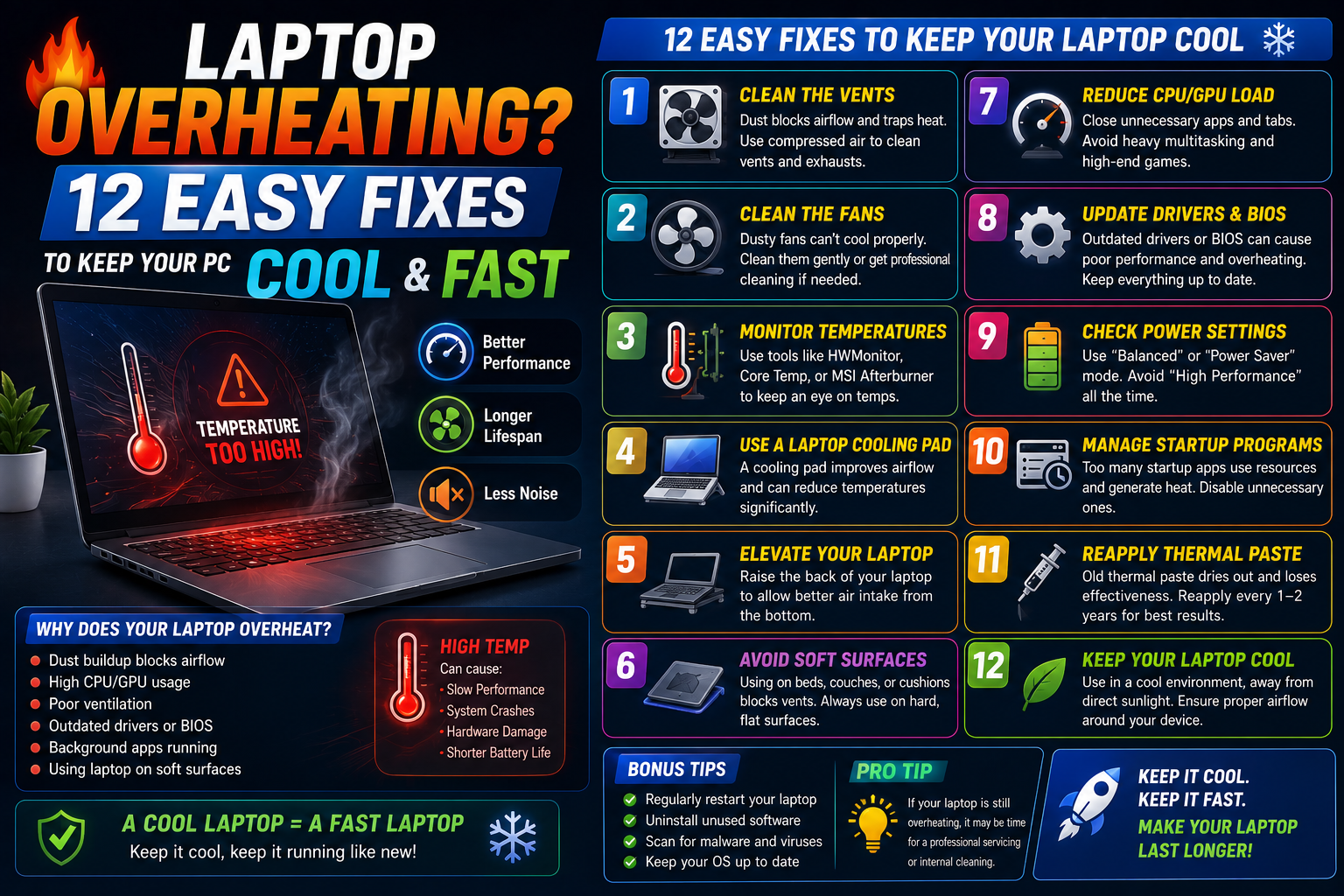
Laptop Overheating? 12 Easy Fixes to Keep Your PC Cool and Fast (2026 Guide)
Is your laptop becoming too hot to touch? Does the fan run constantly, or does your computer slow down while gaming, editing videos, or even browsing the web? Laptop overheating is a common problem that can reduce performance, shorten hardware lifespan, and even cause unexpected shutdowns.
The good news is that most overheating issues can be fixed with simple maintenance and a few software adjustments. In this guide, you’ll learn 12 easy and effective ways to keep your laptop cool and running at peak performance.
Why Is My Laptop Overheating?
Modern laptops generate heat whenever the CPU and GPU are under load. Normally, cooling fans and heat sinks dissipate this heat. However, problems such as dust buildup, blocked vents, outdated software, or failing hardware can prevent proper cooling.
Common Signs of Overheating
- Laptop feels extremely hot
- Fans run at maximum speed constantly
- Slow performance (thermal throttling)
- Random shutdowns or restarts
- Games stutter or lag
- Blue Screen of Death (BSOD)
- Battery drains faster than normal
Ignoring these warning signs can lead to permanent hardware damage.
1. Clean the Air Vents
Dust is the most common cause of overheating.
Dust blocks airflow and prevents heat from escaping.
What to Do
- Turn off your laptop.
- Unplug the charger.
- Use compressed air to blow dust from the vents.
- Avoid inserting sharp objects into the vents.
Cleaning your laptop every few months can significantly improve cooling.
2. Use Your Laptop on a Hard Surface
Soft surfaces like:
- Beds
- Blankets
- Pillows
- Sofas
can block air intake vents.
Instead, place your laptop on:
- A desk
- A table
- A laptop stand
This allows proper airflow underneath the device.
3. Use a Laptop Cooling Pad
Cooling pads use built-in fans to improve airflow around your laptop.
Benefits
- Lower CPU temperatures
- Lower GPU temperatures
- Improved gaming performance
- Reduced fan noise
- Better long-term hardware health
They’re especially useful for gaming and video editing laptops.
4. Close Unnecessary Programs
Running too many applications increases CPU and RAM usage, generating more heat.
Open Task Manager by pressing:
Ctrl + Shift + Esc
Close programs that consume excessive:
- CPU
- Memory
- Disk
This reduces workload and lowers temperatures.
5. Check CPU Usage
If your CPU remains near 100% even when idle, a background process may be causing unnecessary heat.
Common causes include:
- Windows updates
- Malware
- Browser tabs
- Background apps
- Cloud synchronization
Identify and stop unnecessary processes when appropriate.
6. Update Windows and Drivers
Outdated software can lead to inefficient hardware performance.
Update:
- Windows 11
- Graphics drivers
- Chipset drivers
- BIOS (only if recommended by your laptop manufacturer)
Driver updates often include thermal management improvements and bug fixes.
7. Scan for Malware
Some malware runs continuously in the background, consuming CPU resources and generating excessive heat.
Run a Full Scan using Windows Security.
If malware is detected, remove it immediately and restart your laptop.
8. Reduce Startup Programs
Too many startup applications increase CPU usage immediately after boot.
To disable unnecessary startup apps:
- Open Task Manager
- Select Startup Apps
- Disable programs you don’t need at startup
Your laptop will boot faster and stay cooler.
9. Adjust Power Settings
High-performance power plans keep the processor running at higher speeds, even during light tasks.
Go to:
Settings → System → Power & Battery
Choose:
- Balanced
- Recommended Power Mode
This can reduce heat generation during everyday use.
10. Improve Room Ventilation
Your laptop can only cool itself as effectively as the surrounding environment allows.
Tips:
- Keep the room cool.
- Avoid direct sunlight.
- Don’t use your laptop in hot cars.
- Ensure adequate airflow around the device.
Lower ambient temperatures improve cooling efficiency.
11. Replace Thermal Paste (Advanced)
Over time, the thermal paste between the CPU/GPU and heat sink can dry out.
Fresh thermal paste can:
- Reduce temperatures
- Improve heat transfer
- Restore cooling performance
This task requires opening the laptop and should only be performed if you’re comfortable working with computer hardware or by a qualified technician.
12. Check for Hardware Problems
If overheating continues despite cleaning and software optimization, there may be a hardware issue.
Possible causes include:
- Faulty cooling fan
- Loose heat sink
- Failing battery
- Damaged heat pipes
- Dust trapped inside the cooling system
Professional inspection may be necessary if the problem persists.
How to Monitor Laptop Temperature
Monitoring temperatures helps determine whether your laptop is overheating.
As a general guideline:
| Component | Typical Idle | Heavy Load |
|---|---|---|
| CPU | 35–55°C | 70–90°C |
| GPU | 35–55°C | 65–85°C |
Short spikes above these ranges may occur under demanding workloads, but consistently high temperatures should be investigated.
Tips to Prevent Overheating
Keep your laptop cool with these habits:
- Clean vents regularly
- Update Windows and drivers
- Use a cooling pad for intensive tasks
- Close unused programs
- Avoid blocking air vents
- Keep your workspace clean and cool
- Restart your laptop regularly
- Scan for malware periodically
Preventive maintenance is easier than repairing heat-related damage.
Frequently Asked Questions
Why does my laptop get hot while gaming?
Gaming places heavy demands on the CPU and GPU, causing them to generate more heat. Proper ventilation, updated drivers, and a cooling pad can help reduce temperatures.
Is laptop overheating dangerous?
Yes. Persistent overheating can reduce performance, shorten component lifespan, and potentially lead to hardware failure if left unaddressed.
Can overheating slow down my laptop?
Yes. Most modern laptops automatically reduce CPU and GPU speeds—a process called thermal throttling—to prevent damage, which results in slower performance.
How often should I clean my laptop?
For most users, cleaning the vents every 3–6 months is sufficient. If you have pets, smoke indoors, or live in a dusty environment, more frequent cleaning may be beneficial.
Should I always use a cooling pad?
A cooling pad isn’t necessary for everyday tasks, but it can help during gaming, video editing, 3D rendering, or other sustained heavy workloads.
Final Thoughts
Laptop overheating is a common issue, but it’s usually preventable with regular maintenance and smart usage habits. Cleaning dust from vents, improving airflow, reducing unnecessary background processes, updating drivers, and monitoring temperatures can dramatically improve cooling and performance.
If your laptop continues to overheat after trying these fixes, the issue may be hardware-related, such as a failing fan or deteriorated thermal paste. Addressing the problem early can help protect your hardware, maintain performance, and extend your laptop’s lifespan.