
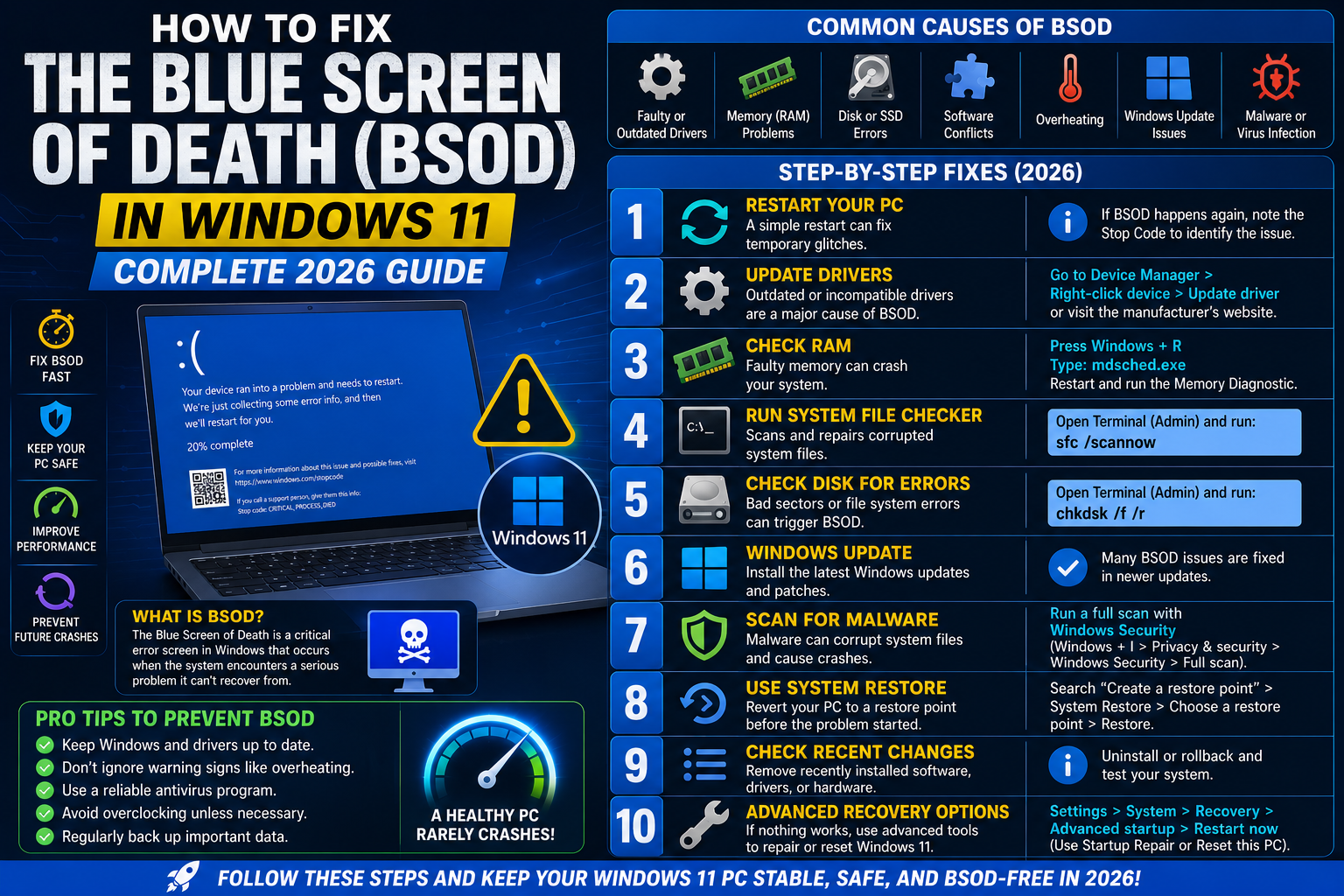
How to Fix the Blue Screen of Death (BSOD) in Windows 11: Complete 2026 Guide
The Blue Screen of Death (BSOD) is one of the most frustrating errors Windows users can encounter. A BSOD causes your computer to suddenly crash, display a blue error screen, and restart unexpectedly. While it can seem alarming, most BSOD errors are caused by issues such as outdated drivers, faulty hardware, corrupted system files, or software conflicts—and many can be fixed without replacing your computer.
In this complete 2026 guide, you’ll learn what causes BSOD errors in Windows 11 and discover proven solutions to get your PC running smoothly again.
What Is the Blue Screen of Death (BSOD)?
A BSOD is a critical system error that occurs when Windows encounters a problem it cannot safely recover from. To prevent data corruption or hardware damage, Windows stops running and displays a blue error screen with a Stop Code before restarting.
Common Stop Codes include:
- CRITICAL_PROCESS_DIED
- IRQL_NOT_LESS_OR_EQUAL
- MEMORY_MANAGEMENT
- SYSTEM_SERVICE_EXCEPTION
- KMODE_EXCEPTION_NOT_HANDLED
- PAGE_FAULT_IN_NONPAGED_AREA
- DPC_WATCHDOG_VIOLATION
- DRIVER_POWER_STATE_FAILURE
The stop code provides clues about the underlying issue.
Common Causes of BSOD in Windows 11
Several factors can trigger a blue screen:
- Corrupted Windows system files
- Faulty or outdated drivers
- Failing RAM
- Overheating CPU or GPU
- SSD or HDD errors
- Malware infections
- Corrupted Windows updates
- Faulty graphics drivers
- Hardware incompatibility
- Overclocking instability
- Power supply problems
Identifying the root cause is the key to fixing the issue.
1. Restart Your Computer
If the BSOD appears only once, restart your PC.
Temporary crashes may occur due to:
- Windows updates
- Driver installation
- Software conflicts
- Temporary memory errors
If the blue screen does not return, it may have been an isolated event.
2. Note the Stop Code
Before your PC restarts, write down the Stop Code displayed on the blue screen.
Examples:
- MEMORY_MANAGEMENT
- CRITICAL_PROCESS_DIED
- DRIVER_IRQL_NOT_LESS_OR_EQUAL
The stop code helps narrow down whether the problem is related to memory, drivers, storage, or another component.
3. Disconnect External Devices
Faulty peripherals can sometimes trigger BSOD errors.
Disconnect:
- USB drives
- External hard drives
- Printers
- Webcams
- USB hubs
- Game controllers
- Docking stations
Restart your PC and reconnect devices one at a time to identify the culprit.
4. Boot into Safe Mode
If Windows crashes repeatedly, start in Safe Mode, which loads only essential drivers and services.
In Safe Mode, you can:
- Uninstall problematic software
- Remove faulty drivers
- Scan for malware
- Perform system repairs
If your PC works normally in Safe Mode, a third-party driver or application is likely causing the issue.
5. Update Windows
Microsoft regularly releases updates that fix bugs, improve stability, and resolve compatibility issues.
To check for updates:
- Open Settings
- Select Windows Update
- Click Check for updates
- Install all available updates
- Restart your PC
Keeping Windows up to date helps prevent many BSOD errors.
6. Update Device Drivers
Outdated or corrupted drivers are one of the leading causes of blue screens.
Update drivers for:
- Graphics card
- Chipset
- Network adapter
- Storage controller
- Audio device
Download drivers directly from your hardware manufacturer’s official website whenever possible.
7. Roll Back a Problematic Driver
If the BSOD started after updating a driver:
- Open Device Manager
- Find the affected device
- Open Properties
- Select the Driver tab
- Click Roll Back Driver (if available)
This restores the previous version that may be more stable.
8. Run Windows Memory Diagnostic
Faulty RAM frequently causes BSOD errors such as MEMORY_MANAGEMENT.
To test your memory:
- Press Windows + R
- Type mdsched.exe
- Press Enter
- Choose Restart now and check for problems
Windows will test your RAM and report any detected issues.
9. Check System Files
Corrupted Windows system files can trigger frequent crashes.
Open Command Prompt as Administrator and run:
sfc /scannowWait for the scan to complete.
If problems remain, run:
DISM /Online /Cleanup-Image /RestoreHealthThese built-in tools repair damaged Windows components.
10. Check Your Hard Drive
Storage errors may lead to random crashes.
Run:
chkdsk C: /f /rWindows will schedule a disk check during the next restart.
This scan can detect and repair file system errors and bad sectors.
11. Scan for Malware
Some malware can damage system files or drivers.
Use Windows Security to run:
- Quick Scan
- Full Scan
- Microsoft Defender Offline Scan
Remove any detected threats and restart your PC.
12. Uninstall Recently Installed Software
If BSOD errors started after installing new software:
Go to:
Settings → Apps → Installed Apps
Remove:
- Antivirus programs
- System optimization tools
- Driver updater utilities
- Recently installed applications
Restart your PC to see if the issue is resolved.
13. Check for Overheating
High temperatures can make your system unstable.
Signs of overheating include:
- Loud fans
- Unexpected shutdowns
- Performance drops
- Frequent BSODs during gaming or heavy workloads
Clean dust from:
- CPU cooler
- Graphics card
- Air vents
- Case fans
Monitor temperatures using reputable hardware monitoring software.
14. Remove Overclocking
If you’ve overclocked your:
- CPU
- GPU
- RAM
Restore all settings to their default values in the BIOS or your tuning software.
Unstable overclocks are a common cause of random BSODs.
15. Perform System Restore
If the issue began recently:
- Search for Create a restore point
- Open System Restore
- Choose a restore point created before the crashes started
- Follow the prompts
This can undo problematic system changes without affecting your personal files.
16. Reset Windows 11
If nothing else works:
- Open Settings
- Go to System → Recovery
- Select Reset this PC
- Choose Keep my files
Windows will reinstall itself while preserving your personal documents.
When BSOD Indicates Hardware Failure
If crashes continue after trying all software fixes, hardware may be failing.
Possible causes include:
- Faulty RAM
- Failing SSD or HDD
- Defective graphics card
- Overheating CPU
- Weak or failing power supply
- Motherboard issues
If possible, test components individually or consult a qualified technician.
Tips to Prevent Future BSOD Errors
Follow these best practices:
- Keep Windows updated
- Install drivers from trusted sources
- Avoid unnecessary driver updater tools
- Keep at least 20% free storage space
- Scan for malware regularly
- Monitor system temperatures
- Avoid unstable overclocking
- Shut down your PC properly
- Back up important data regularly
Frequently Asked Questions
What causes the Blue Screen of Death in Windows 11?
Common causes include outdated or corrupted drivers, failing hardware, damaged system files, malware, overheating, storage errors, and incompatible software.
Is a BSOD a virus?
Not usually. While malware can contribute to system instability, most BSOD errors are caused by hardware or software issues rather than viruses.
Can faulty RAM cause BSOD errors?
Yes. Defective or unstable memory is one of the most common reasons for blue screen crashes.
Will resetting Windows fix BSOD errors?
A reset can resolve issues caused by corrupted system files or software conflicts. However, if the problem is faulty hardware, a reset alone will not fix it.
Should I replace my PC after a BSOD?
Not necessarily. Most BSOD issues can be resolved through software troubleshooting or by replacing a single faulty component, such as RAM or a storage drive.
Final Thoughts
The Blue Screen of Death can be intimidating, but it doesn’t always mean your computer is beyond repair. In many cases, the problem can be fixed by updating Windows, repairing corrupted system files, checking your drivers, testing your RAM, and scanning your storage for errors.
If software troubleshooting doesn’t solve the issue, investigate potential hardware problems such as failing memory, storage devices, overheating, or power supply issues. By following the steps in this guide, you can diagnose the root cause, restore system stability, and reduce the likelihood of future BSOD crashes on your Windows 11 PC.