
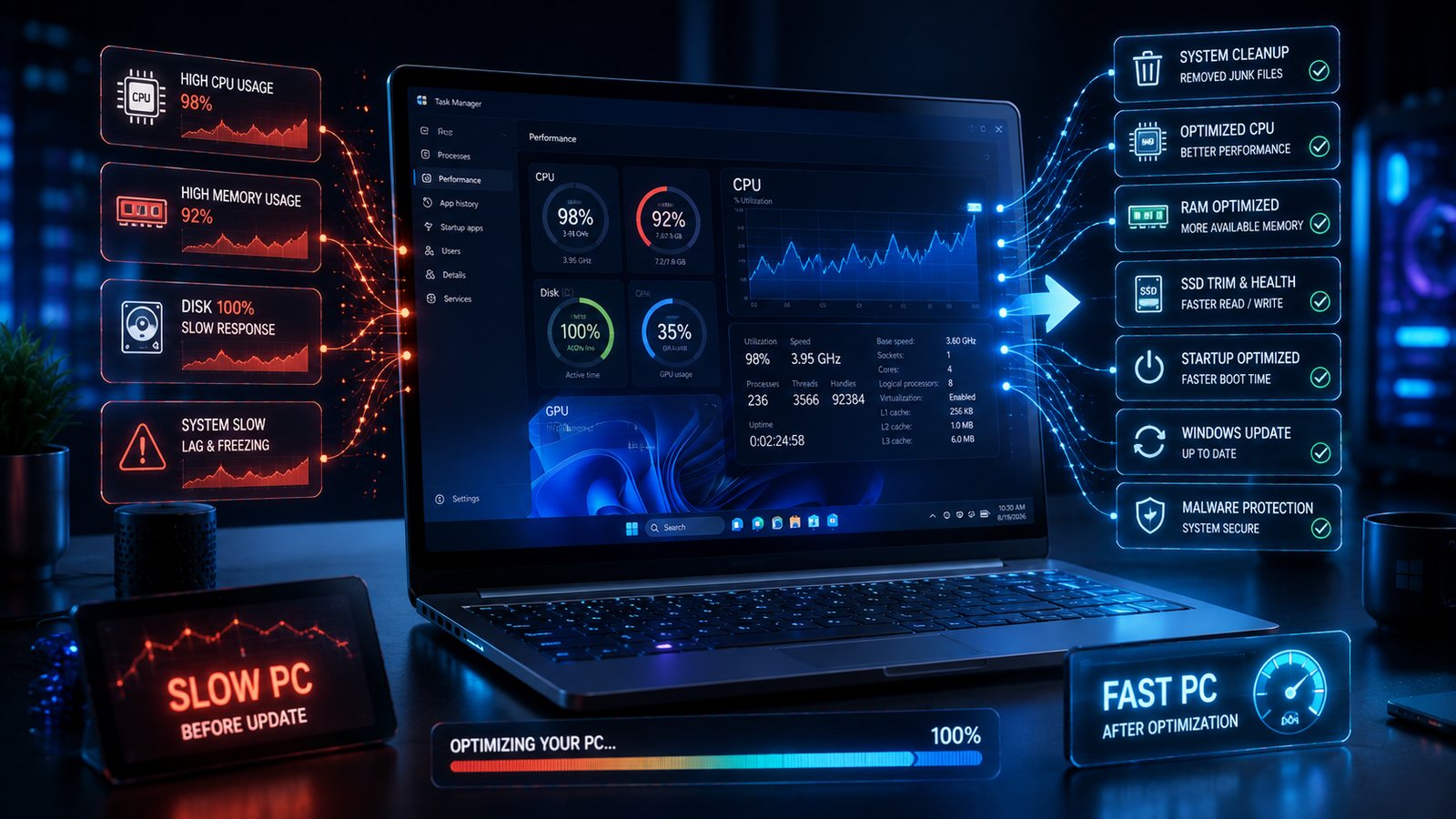
Windows 11 Slow After an Update? 12 Proven Ways to Make Your PC Faster Again
Last Updated: August 19, 2026
Did your Windows 11 PC suddenly become slow after installing a recent update?
You’re not alone. A Windows update can sometimes be followed by slower startup times, delayed app launches, high CPU or disk usage, increased background activity, or a general feeling that the computer is no longer as responsive as it was before.
The important thing is that an update is not always the actual cause. Windows may be completing background tasks, rebuilding indexes, installing drivers, running security scans, or dealing with an application or driver that does not work perfectly with the updated operating system.
Microsoft says Windows PCs can become slow for several reasons, including limited storage, excessive startup applications, outdated software, background activity, and hardware that no longer meets modern performance requirements.
The good news is that you don’t necessarily need to reset Windows or buy a new PC.
In this guide, you’ll learn 12 proven ways to fix a slow Windows 11 PC after an update, starting with the safest and easiest solutions and moving toward more advanced troubleshooting.
Why Is Windows 11 Slow After an Update?
Before changing anything, it’s useful to understand what may be happening.
A Windows update can change system files, drivers, background services and application compatibility. Microsoft also notes that older applications can experience compatibility problems after Windows changes because of differences in system architecture, security features or system requirements.
Common symptoms include:
- Windows 11 taking longer to boot
- Apps opening slowly
- File Explorer becoming sluggish
- High CPU usage
- High disk usage
- Memory usage remaining unusually high
- Random freezes
- Mouse or keyboard lag
- Browser tabs becoming slow
- Fans running constantly
- Laptop battery draining faster
- Games performing worse than before
- Windows Search taking longer than usual
- Delayed Start menu responses
Sometimes these symptoms disappear after Windows finishes its background work.
If the slowdown continues, however, it’s worth troubleshooting systematically.
12 Ways to Make Windows 11 Faster After an Update
1. Restart Your PC Properly
It sounds simple, but restarting Windows is one of the first things you should try after an update.
A restart allows Windows to finish pending installation tasks, reload drivers, restart system services and clear temporary processes.
If you simply closed your laptop lid or used Sleep mode after the update, Windows may not have performed the full restart you need.
How to restart Windows 11
- Click Start.
- Select the Power button.
- Click Restart.
- Wait until Windows completely restarts.
- Give the system a few minutes before opening many applications.
After restarting, test the PC before making other changes.
If performance improves significantly, the slowdown may have been caused by temporary post-update processes.
Microsoft also recommends closing unused applications and restarting the PC when troubleshooting performance problems.
2. Check Task Manager to Find What’s Making Your PC Slow
If Windows 11 remains slow, don’t guess.
Find out what is actually using your computer’s resources.
Windows 11’s Task Manager can show you which applications and processes are consuming:
- CPU
- Memory
- Disk
- Network
- GPU
Open Task Manager
Press:
Ctrl + Shift + Esc
Then select Processes.
Look at the CPU, Memory and Disk columns.
For example:
High CPU
If one application is constantly consuming a large amount of CPU, that application may be responsible for the slowdown.
High Memory
If memory usage is consistently very high, you may have too many applications or browser tabs running.
High Disk
If disk usage stays near 100% for long periods, Windows services, applications, indexing, antivirus activity or storage hardware may be contributing to the problem.
Microsoft recommends using Task Manager to monitor resource usage and identify processes consuming excessive CPU, memory or disk resources.
Important warning
Don’t randomly end Windows system processes just because they use resources.
If you don’t recognize a process, research it first or leave it running.
3. Disable Unnecessary Startup Apps
Startup applications are one of the most common reasons a Windows PC feels slow.
Many programs automatically launch when you sign into Windows even though you don’t need them immediately.
Examples can include:
- Chat applications
- Cloud storage clients
- Game launchers
- Meeting applications
- Update assistants
- Media applications
- Manufacturer utilities
Microsoft specifically recommends disabling unnecessary startup applications to improve startup and overall responsiveness.
How to disable startup apps
Open:
Settings > Apps > Startup
You’ll see applications that can automatically start when you sign into Windows.
Alternatively:
- Press Ctrl + Shift + Esc.
- Open Startup apps.
- Look at the Startup impact column.
- Select an application you don’t need.
- Click Disable.
Microsoft’s Task Manager can show startup impact, including Low, Medium and High impact categories.
What should you disable?
Generally, you can disable applications you don’t need immediately after logging into Windows.
Don’t disable essential Windows components, security software or hardware drivers unless you know exactly what they do.
4. Free Up Storage Space
A nearly full system drive can contribute to poor performance.
Windows needs free space for temporary files, updates, caches and other operations.
Microsoft recommends using Storage Sense and temporary-file cleanup tools when Windows performance is poor.
Check your storage
Go to:
Settings > System > Storage
Look at your C: drive.
If your system drive is nearly full, start cleaning it.
Use Storage Sense
Go to:
Settings > System > Storage > Storage Sense
Storage Sense can automatically remove unnecessary temporary files and help maintain free storage.
Remove temporary files
Go to:
Settings > System > Storage > Temporary files
Review the categories carefully.
Then remove files you no longer need.
Don’t delete files blindly
Before removing anything, check what Windows is offering to delete.
If you have important files in Downloads or other personal folders, back them up first.
5. Remove Apps You Don’t Use
Unused applications consume more than storage space.
Some programs install background services, scheduled tasks, startup entries and update processes.
If you haven’t used an application for months, removing it may reduce unnecessary background activity.
Microsoft recommends uninstalling unused applications as another way to free storage and reduce background activity.
Uninstall unnecessary apps
Go to:
Settings > Apps > Installed apps
Find an application you don’t need.
Select the three-dot menu (…) and choose:
Uninstall
Repeat this for software you no longer use.
Avoid removing essential drivers
Don’t uninstall:
- Graphics drivers
- Chipset software
- Audio drivers
- Touchpad drivers
- Network drivers
- Microsoft system components
unless you’re troubleshooting a specific problem and know what you’re doing.
6. Install the Latest Windows and Optional Driver Updates
This may seem strange because your computer became slow after an update.
However, Microsoft recommends checking for both Windows updates and available optional driver updates when troubleshooting performance.
Sometimes a follow-up update fixes a problem introduced by an earlier release.
Check Windows Update
Go to:
Settings > Windows Update
Select:
Check for updates
Install available updates.
Then check:
Advanced options > Optional updates
If Windows offers optional driver updates, review them.
Why drivers matter
A Windows update can interact with:
- Graphics drivers
- Network drivers
- Storage controllers
- Chipset drivers
- Audio drivers
- Bluetooth drivers
A driver mismatch can sometimes produce performance problems.
For important hardware drivers, prefer your PC manufacturer’s official support page when appropriate.
7. Scan Windows 11 for Malware
If your PC suddenly becomes slow, don’t assume Windows itself is responsible.
Malware can consume CPU, memory, disk and network resources.
Microsoft recommends running a malware scan when troubleshooting slow Windows performance.
Run a Windows Security scan
Go to:
Settings > Privacy & security > Windows Security > Virus & threat protection
Then select:
Quick scan
Allow the scan to complete.
If you suspect something more serious, consider a more comprehensive scan using Windows Security’s available scanning options.
Warning signs of malware
Watch for:
- Unknown programs launching
- Unexpected pop-ups
- Browser redirects
- Excessive CPU usage
- Unknown startup applications
- Strange network activity
- Security settings changing unexpectedly
Avoid downloading random “PC booster” or “registry cleaner” applications claiming to remove malware.
8. Reduce Windows 11 Visual Effects
Windows 11 looks polished, but visual effects require system resources.
On a newer PC this usually isn’t a major issue.
On older hardware, systems with limited RAM, or computers already struggling with performance, reducing visual effects can make Windows feel more responsive.
Microsoft includes Adjust for best performance among its recommended Windows performance options.
How to reduce visual effects
Press the Windows key and search for:
Adjust the appearance and performance of Windows
Open the result.
Under Visual Effects, you can choose:
Adjust for best performance
Alternatively, manually disable effects you don’t care about.
What does this change?
Windows may look slightly less visually polished, but menus and animations can feel faster on lower-powered machines.
9. Change Power Mode to Best Performance
Windows 11 can prioritize battery life or performance depending on your configuration.
If you’re using a desktop PC or your laptop is plugged into power, you can consider using the Best performance power mode.
Microsoft specifically recommends Best performance as an option when maximum performance is more important than power consumption.
Change the power mode
Go to:
Settings > System > Power & battery
Find:
Power mode
Select:
Best performance
Important laptop warning
Best performance can:
- Increase power consumption
- Reduce battery life
- Increase heat
- Increase fan noise
Therefore, don’t necessarily leave it enabled all the time on a battery-powered laptop.
Use it when you actually need additional performance.
10. Optimize Your Storage Drive
Windows includes a built-in tool called Defragment and Optimize Drives.
It can help optimize supported storage devices.
Open the tool
Press the Windows key.
Search for:
Defragment and Optimize Drives
Open it.
Select the appropriate drive and choose:
Optimize
Windows handles the appropriate optimization process for the storage type.
SSD vs HDD
Modern SSDs should not be treated like traditional mechanical hard drives.
Windows knows how to handle supported storage devices, so you shouldn’t manually use random third-party defragmentation software.
The safest approach is to use the Windows built-in optimization tool.
Microsoft includes drive optimization among its recommended performance troubleshooting steps.
11. Perform a Clean Boot If Software Is Causing the Problem
If your Windows 11 PC becomes slow after an update and normal troubleshooting doesn’t identify the cause, a clean boot can help determine whether a background application or service is responsible.
Microsoft explains that a clean boot starts Windows with essential drivers and startup programs so you can identify software conflicts.
This is particularly useful if:
- Windows starts slowly
- Applications freeze
- Games become unstable
- Performance improves when fewer programs are running
- A third-party utility may be interfering with Windows
Why clean boot helps
A clean boot reduces the number of third-party programs and services running at startup.
If Windows suddenly performs normally in a clean-boot environment, that strongly suggests that background software may be responsible.
Be careful
Clean boot troubleshooting is more advanced than simply disabling startup apps.
Don’t randomly disable Microsoft services.
Follow Microsoft’s official clean-boot procedure carefully.
Microsoft’s official Clean Boot guide
12. Repair Windows System Problems Before Resetting the PC
If your PC is still slow after trying the previous methods, the issue may involve damaged system files or Windows components.
Before completely resetting your computer, consider Windows’ built-in repair and recovery tools.
A useful troubleshooting path is:
- Check Windows Update.
- Check Task Manager.
- Remove unnecessary startup programs.
- Free storage.
- Run Windows Security.
- Check drivers.
- Test with a clean boot.
- Use Windows recovery options if necessary.
Don’t immediately reset Windows
A factory reset should generally be considered a later troubleshooting step rather than the first response to a slow PC.
A reset can remove applications and require you to reinstall software and restore files.
If the slowdown began immediately after a specific update, investigate the update history and other causes first.
How to Tell What’s Actually Slowing Your PC
One of the biggest mistakes people make is changing ten settings at once.
Instead, troubleshoot systematically.
Open:
Task Manager > Processes
Then monitor the system while doing something that normally causes the slowdown.
For example:
If CPU is very high
Look for the application or process consuming the most CPU.
If Memory is high
Check how many applications and browser tabs are open.
If Disk is high
Check whether Windows Update, antivirus scanning, indexing or another application is using the drive heavily.
If GPU is high
Look at games, video applications, browsers or graphics-heavy programs.
If everything looks normal
The problem could involve:
- Drivers
- Background services
- Storage hardware
- Application compatibility
- Thermal throttling
- Hardware limitations
- Windows configuration
Why a Windows Update Can Make a PC Feel Slow Temporarily
Not every slowdown immediately after an update indicates a failed update.
Windows can perform background activities after installation.
For example, the system may be:
- Completing update-related tasks
- Rebuilding indexes
- Processing system files
- Updating applications
- Running security checks
- Updating drivers
- Reconfiguring services
This is why you should restart the PC and give Windows some time before concluding that the update permanently damaged performance.
However, if the slowdown continues for an extended period, use the troubleshooting steps in this guide.
Windows 11 Slow After Update: Quick Fix Order
If you don’t want to try all 12 methods immediately, use this order.
First
Restart the PC
Second
Open Task Manager
Find out whether CPU, Memory or Disk usage is unusually high.
Third
Disable unnecessary startup apps
Fourth
Free up storage
Fifth
Install pending Windows and driver updates
Sixth
Run Windows Security
Seventh
Remove unused applications
Eighth
Reduce visual effects
Ninth
Try Best performance power mode
Tenth
Optimize the storage drive
Eleventh
Perform a clean boot
Twelfth
Use Windows recovery/repair options
This approach moves from simple and low-risk solutions toward more advanced troubleshooting.
Things You Should NOT Do to Speed Up Windows 11
The internet is full of questionable Windows optimization tricks.
Be careful with advice that tells you to:
- Delete random Registry entries
- Disable dozens of Windows services
- Delete system folders
- Turn off Windows Security
- Download unknown PC optimizer programs
- Use unofficial “debloat” scripts without understanding them
- Disable Windows Update permanently
- Change advanced Registry settings without backups
- Delete unknown files from System32
- Install random driver packages
These changes can create more problems than they solve.
For a normal Windows 11 PC, start with Microsoft’s built-in tools.
Should You Disable Windows Services to Make Windows 11 Faster?
Usually, no.
You may find online guides recommending that you disable services such as Windows Search, SysMain, Windows Update or other system components.
This is not a universal solution.
A service that appears unnecessary on one PC may be important for another configuration.
Instead of blindly disabling services, first identify the actual resource bottleneck.
If Task Manager shows a particular service causing problems, investigate that service specifically.
What If Windows 11 Is Still Slow?
If you’ve completed all 12 solutions and Windows 11 is still slow, consider whether the hardware itself is limiting performance.
Microsoft notes that older hardware may not see significant improvements from software optimization and that upgrading the device can be the better long-term solution.
Check these hardware factors
RAM:
Modern multitasking can be difficult with limited memory.
Storage:
An old mechanical HDD can feel dramatically slower than an SSD.
CPU:
Older processors may struggle with modern applications.
Thermal performance:
Overheating can cause a processor to reduce its speed.
Battery/power limits:
Laptop power-saving modes can reduce performance.
HDD vs SSD: A Major Performance Difference
If your Windows 11 PC still uses a traditional mechanical hard drive, upgrading to an SSD can make a much bigger difference than most software tweaks.
An SSD can significantly improve:
- Windows startup
- Application launches
- File transfers
- General responsiveness
- Update installation
- File Explorer performance
If the rest of the computer is reasonably capable, an SSD upgrade can extend the useful life of an older PC.
When Should You Consider a RAM Upgrade?
If Task Manager consistently shows very high memory usage during normal workloads, adding RAM may help.
For example, users who regularly run:
- Multiple browser windows
- Office applications
- Video editing software
- Development tools
- Virtual machines
- Large creative applications
may benefit from additional memory.
But don’t buy RAM simply because Windows occasionally uses a high percentage of memory.
Modern operating systems intentionally use available RAM for caching and performance.
Look at actual symptoms and sustained memory pressure.
When Is a Windows Reset Worth Considering?
A Windows reset can be useful when:
- System problems persist after extensive troubleshooting
- Windows components appear damaged
- Multiple applications are behaving incorrectly
- The PC has accumulated years of unwanted software
- You suspect extensive configuration problems
But resetting Windows is a major step.
Before doing it:
- Back up important files
- Make sure you have application installers
- Save browser data
- Confirm your Microsoft account details
- Check BitLocker recovery information if applicable
- Make sure you understand which reset option you are choosing
Don’t use a reset as the first solution to a PC that became slow after a recent update.
Frequently Asked Questions
Why is my Windows 11 PC slow after an update?
A slowdown can have several causes, including background post-update activity, driver problems, startup applications, limited storage, malware, application compatibility problems or hardware limitations. Microsoft recommends checking storage, startup apps, malware, updates, visual effects and resource usage when troubleshooting slow Windows performance.
How do I make Windows 11 faster after an update?
Start by restarting the PC, checking Task Manager, disabling unnecessary startup apps, freeing storage, installing available Windows and driver updates, and running a malware scan.
Can a Windows update slow down a PC?
It can sometimes appear to slow a PC temporarily or expose compatibility problems with drivers or applications. However, slow performance isn’t automatically proof that the update itself is defective.
Should I uninstall the Windows update?
Not immediately.
First determine whether the slowdown is caused by a background process, application, driver, storage issue or another problem.
If you believe a specific update is responsible, investigate Microsoft’s release-health information and known issues before taking recovery actions.
Does freeing disk space make Windows 11 faster?
It can help, particularly when the system drive is running low on free space. Microsoft specifically recommends Storage Sense and temporary-file cleanup as performance troubleshooting steps.
Should I disable startup apps?
Yes, unnecessary startup applications can increase boot time and background resource usage. Windows 11 lets you manage them from Settings or Task Manager.
Does Best Performance mode make Windows 11 faster?
It can improve performance when Windows is prioritizing power efficiency, but it also increases power consumption and may increase heat and fan noise. Microsoft recommends using it when maximum performance is more important than battery life.
Is it safe to use Adjust for best performance?
Yes, it is a built-in Windows option. It reduces visual effects to prioritize system responsiveness.
Can malware cause Windows 11 to become slow?
Yes. Malware can consume CPU, memory, disk and network resources. Microsoft recommends using Windows Security to scan for threats when troubleshooting slow performance.
Should I buy a new PC if Windows 11 is slow?
Not necessarily. Try software troubleshooting first. If the computer has an HDD, limited RAM or an older processor, a hardware upgrade may provide a bigger improvement than software optimization.
Related FixOps Guides
If you want to improve your overall digital security and technology skills, these related FixOps guides can help:
- Top 15 AI Tools You Should Use in 2026 to Boost Productivity
- The Best AI Image Generators in 2026
- 10 Free AI Tools That Can Save You Hours of Work Every Week
- ChatGPT vs Google Gemini vs Claude: Which AI Assistant Is Best in 2026?
- How to Speed Up a Slow PC: 15 Proven Performance Fixes
Final Verdict
If Windows 11 is slow after an update, don’t panic and don’t immediately reset your PC.
Start with the basics: restart Windows, open Task Manager and identify what is actually consuming your system resources.
Then work through the 12 solutions in this guide:
- Restart your PC
- Check Task Manager
- Disable unnecessary startup apps
- Free up storage
- Remove unused applications
- Install Windows and driver updates
- Run a malware scan
- Reduce visual effects
- Use Best performance power mode when appropriate
- Optimize your storage drive
- Perform a clean boot
- Repair or recover Windows if necessary
Microsoft’s own performance guidance confirms that slow Windows systems can have multiple causes, including storage limitations, startup applications, outdated software, background activity and aging hardware.
The most important rule is don’t change everything at once.
Find the bottleneck first, make one change, restart if necessary, and test the computer again.
That approach is safer, easier to reverse and much more likely to reveal the real reason your Windows 11 PC became slow.
For additional official guidance, use Microsoft’s Windows performance troubleshooting guide and Microsoft’s official Clean Boot documentation.